
Step 0: Start PowerShell.
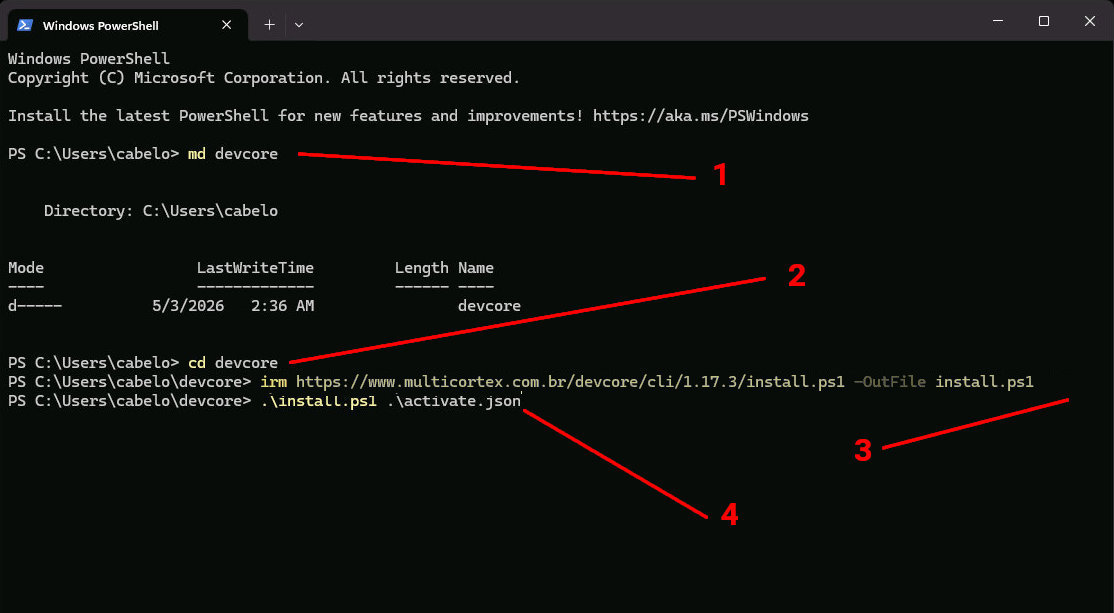
Step 1: Create a folder using the md command.
C:\> md devcore
Step 2: Enter the newly created folder.
C:\> cd devcore
Step 3: Download the PowerShell installation script.
C:\> irm https://www.multicortex.com.br/devcore/cli/1.18.29/install.ps1 -OutFile install.ps1
Step 4: Copy the activation file to the folder along with the PowerShell script and execute the command that follows the activation file as a parameter.
C:\> .\install.ps1 .\activate.json
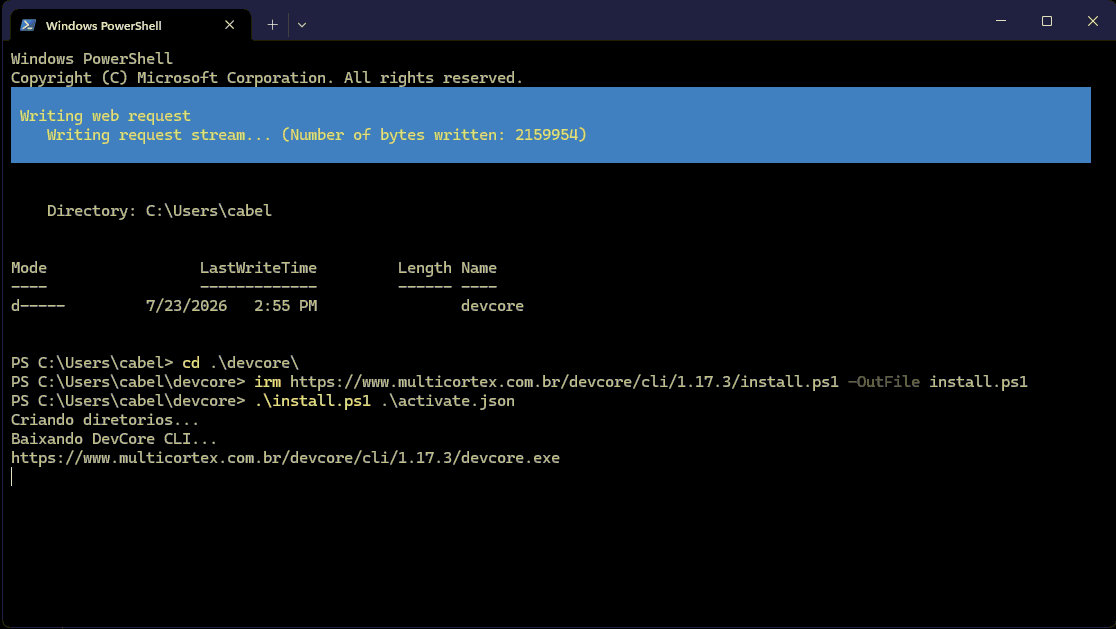
Step 5: Please wait for the first stage of the installation, which is the download of the executable file. After the installation is successfully completed, a new message will appear informing you that it is finished.
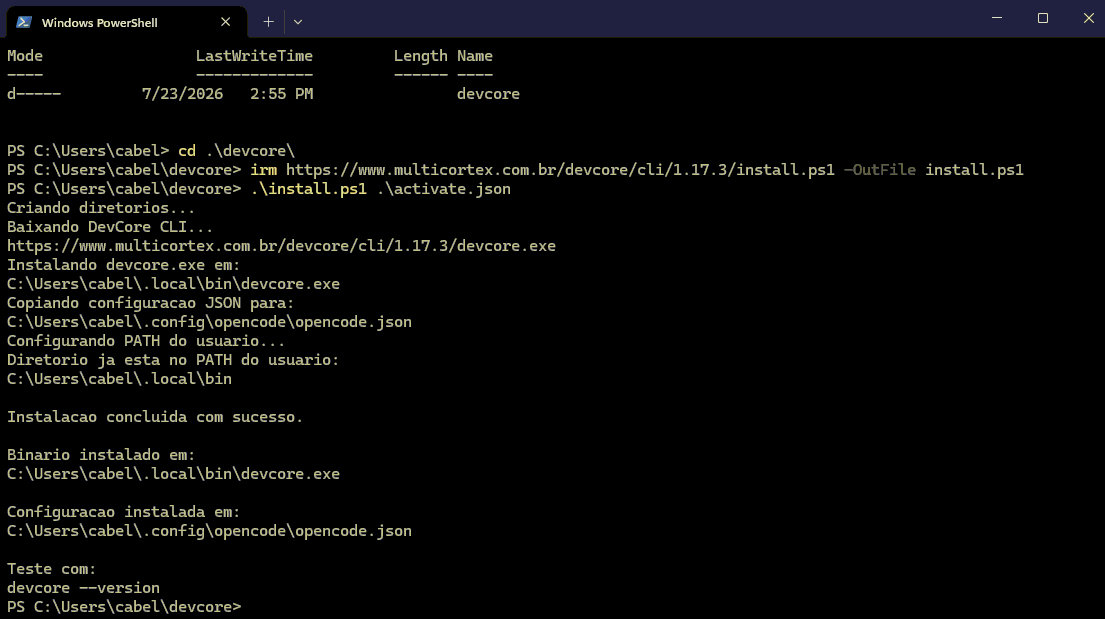
If you've reached this point, your installation has been successfully completed. Otherwise, please contact MultiCortex at support@multicortex.ai
MultiCortex DevCore CLI
First steps
Type the command devcore and press [ENTER]
C:\> devcore
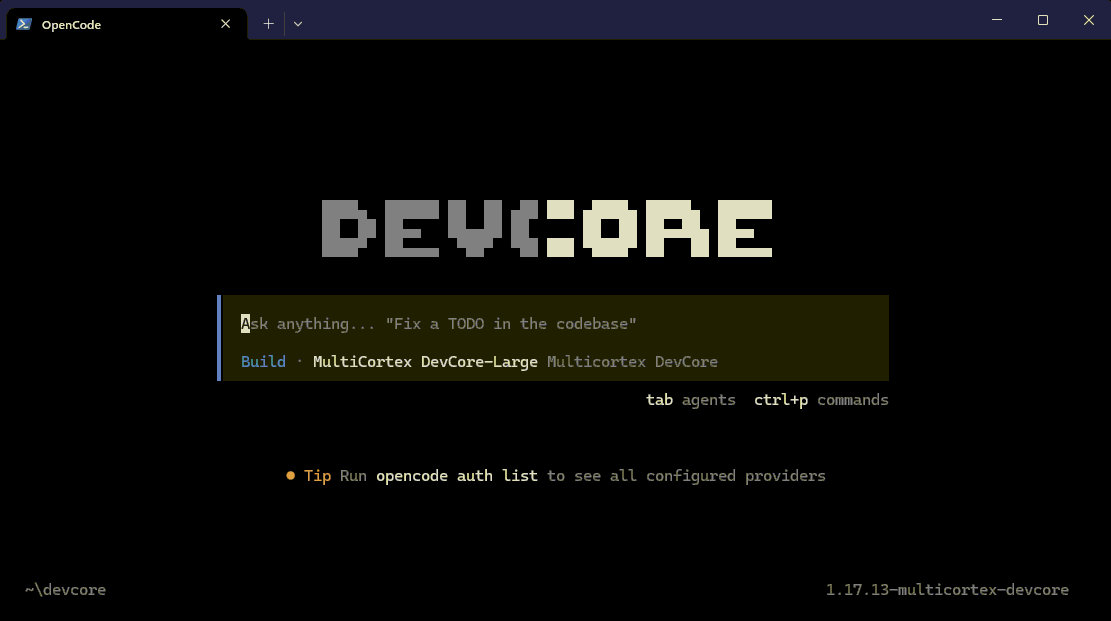
Have fun with DevCore CLI.
Remove the DevCore CLI binary and version files by opening PowerShell and running the commands below:
      C:\> Remove-Item -Path "$env:USERPROFILE\.local\bin\devcore.exe" -Force
      C:\> Remove-Item -Path "$env:USERPROFILE\.config\opencode" -Recurse -Force